Schedule Meeting with Multiple Contacts
Schedule a Meeting with Multiple Contacts
💡Note: Before you get started, make sure the people you want to add to the meeting have been added as a Contact in your account. Include their cell phone number and email address so they can receive the email invitation and text reminder prior to the meeting.
1. Go to the Contacts Tab
Navigate to the Contacts tab from the main menu.
Select the first person you want to invite to the meeting.
2. Open Contact Profile
Click on the name of one of the contacts you want to schedule the meeting with.
3. Select Appointments Icon
Locate and click on the appointments icon (calendar icon) on the right side of the profile.

4. Add New Appointment
Click on the add button to create a new appointment.
5. Fill Appointment Details
Complete the appointment form:
Choose the calendar for the appointment.
Enter an appointment title (e.g., discussing product).
Choose the date and time for the meeting.
6. Set Meeting Location
For the meeting location, select calendar default (usually set to Zoom) or choose custom for other types of meetings (like in person or phone call)
7. Add Additional Attendees
Check the attendees section to see the initial guest
Click on the add guests button to include more attendees. If you do not see a button to "Add Guests" see instructions at the end of this article.

8. Search and Add Additional Contacts
Search for additional contacts
Select the contacts you want to invite and click done.
9. Review Attendees List
Confirm that all attendees are listed correctly.
10. Book Appointment
Click on the book appointment button to finalize the meeting.
This will send out a meeting reminder with the Zoom link to all attendees.
If you don't see the "Add Guest" button, do the following:
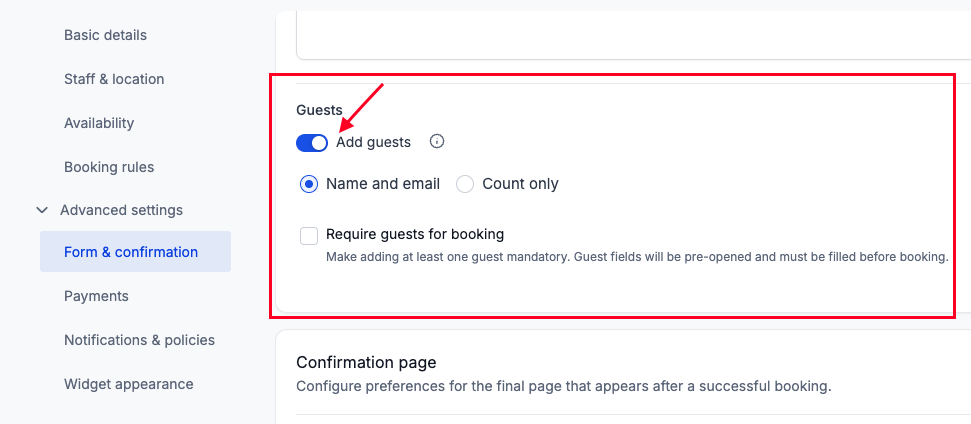
If the "Add Guests" button is missing, you need to enable the "Add Guests" feature for your calendar. Here’s how you can do it:
Go to Settings > Calendars
Click Edit next to the calendar you want to update.
Click to expand Advanced Settings and select Form & confirmation.

Scroll down to the Guests section and toggle on Add guests. This will allow you to add additional attendees when scheduling appointments.